
What's it about?
In the field of branding, fonts are often just as important as logos or colors. They shape the visual identity of a brand and ensure recognition.
Having your own font ensures that your brand's appearance remains consistent—even in an Advent calendar. Here are the key benefits:
- Brand recognition: A distinctive house font is a strong identifying feature.
- Brand identity: Your font conveys the style and character of your brand.
- Professional appearance: A calendar using your house font looks high-quality and well thought-out.
For these reasons, you shouldn't miss out on using this central branding element in your Türchen Advent calendar. With the White-Label feature, you can easily integrate your own fonts.
In this blog article, we explain how it works and what advantages it offers.
Requirements for Using Custom Fonts
For your Türchen calendar, we already offer over 1,000 Google Fonts as standard starting from the Business package, which you can easily select with a click. The following guide is for special fonts that are not included.
- Make sure you have the necessary licenses to use the fonts.
- To use custom fonts in Türchen, you need the "White-Label" feature. This feature is included in the "Premium" and "Enterprise" packages, or you can purchase it separately. You'll find the "White-Label" feature under "Appereance" in the editor, if it's enabled.
- Once the "White-Label" feature is activated, you’ll find the corresponding menu option in the editor.
Step 1: Upload Fonts
- To integrate your own fonts into the calendar, they must first be uploaded. Here’s how to do it:
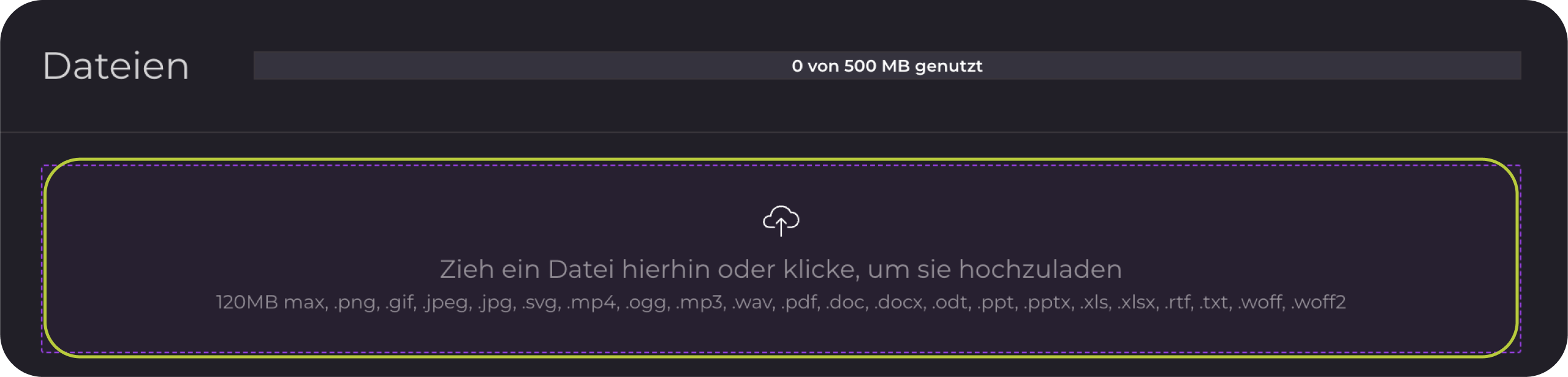
- In the "Contents" menu, go to "Files."
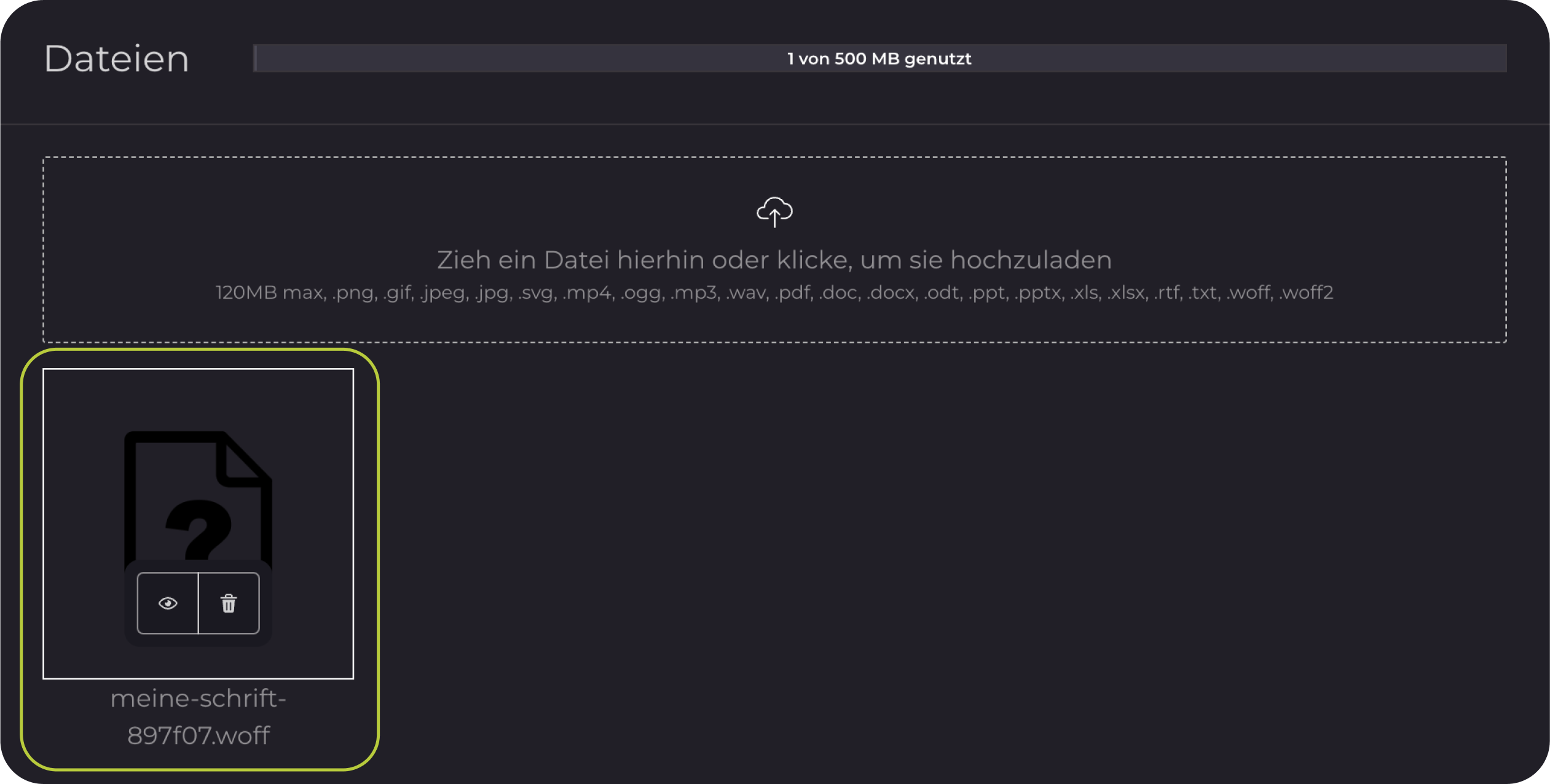
- Upload font files: Upload the required font files in .woff or .woff2 format.
Note: If you only have .ttf or .otf files, you can convert them to the appropriate format using an online converter tool.
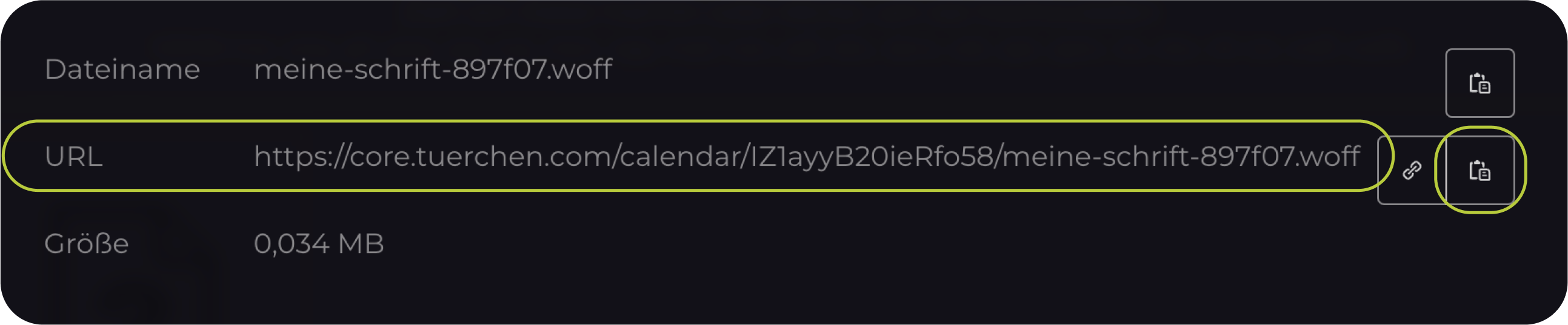
- Copy the font URL: In the file browser, each uploaded font will have an eye icon. Click on it to display the font URL. Copy this URL for the next steps.
Step 2: Load Fonts into the Calendar
To use the uploaded fonts in your calendar, follow these steps:
- Go to: Contents → White Label → CSS
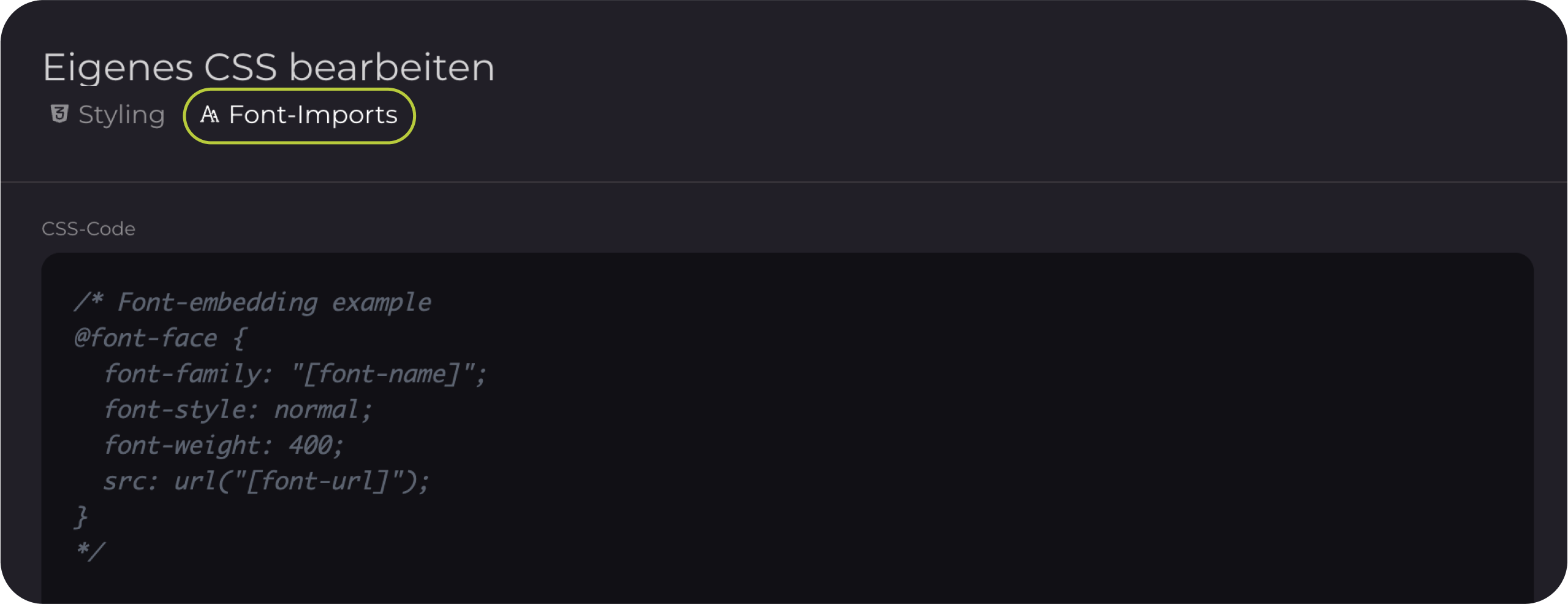
- Edit Font Imports: Select the "Font-Imports" tab (right under the headline, above the input). You’ll find an example of how to import fonts.
- Remove the comment lines /* […] */.
- Replace the example URL with the font URL you copied in the previous step.
- Give the font a unique name.
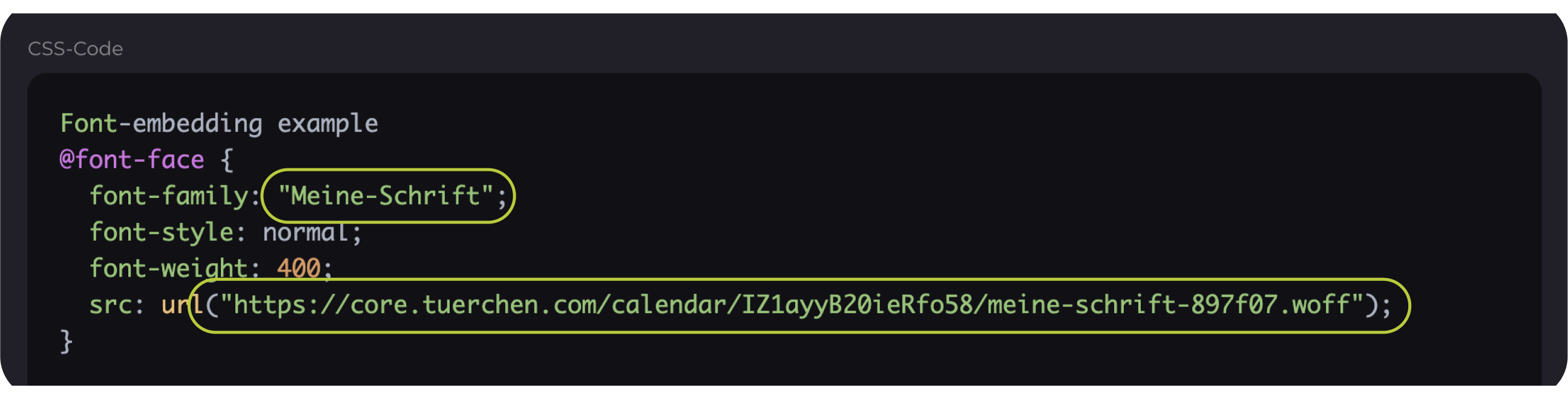
- Consideration of Weights and Styles: Since fonts can be structured differently and calendars may require different combinations of weight (e.g., Light, Bold) and style (e.g., Normal, Italic), there’s no one-size-fits-all solution.
Example – A body text font in Bold and Normal and a special font for the doors:
@font-face {
font-family: "CorporateFont";
font-style: normal;
font-weight: 400;
src: url("https://core.tuerchen.com/calendar/BeispielKalenderKey/corporatefont-regular-ee1f7a.woff2");
}
@font-face {
font-family: "CorporateFont";
font-style: normal;
font-weight: 700;
src: url("https://core.tuerchen.com/calendar/BeispielKalenderKey/corporatefont-bold-ee1f7a.woff2");
}
@font-face {
font-family: "ChristmasFont";
font-style: normal;
font-weight: 400;
src: url("https://core.tuerchen.com/calendar/BeispielKalenderKey/christmasfont-regular-ee1f7a.woff2");
}
Step 3: Use Fonts in the Calendar
To apply the embedded fonts:
- Go to the Styling section: In the same CSS popup as before, under the "Styling" header, you’ll find the section where you can integrate the fonts (under the headline, above the input).
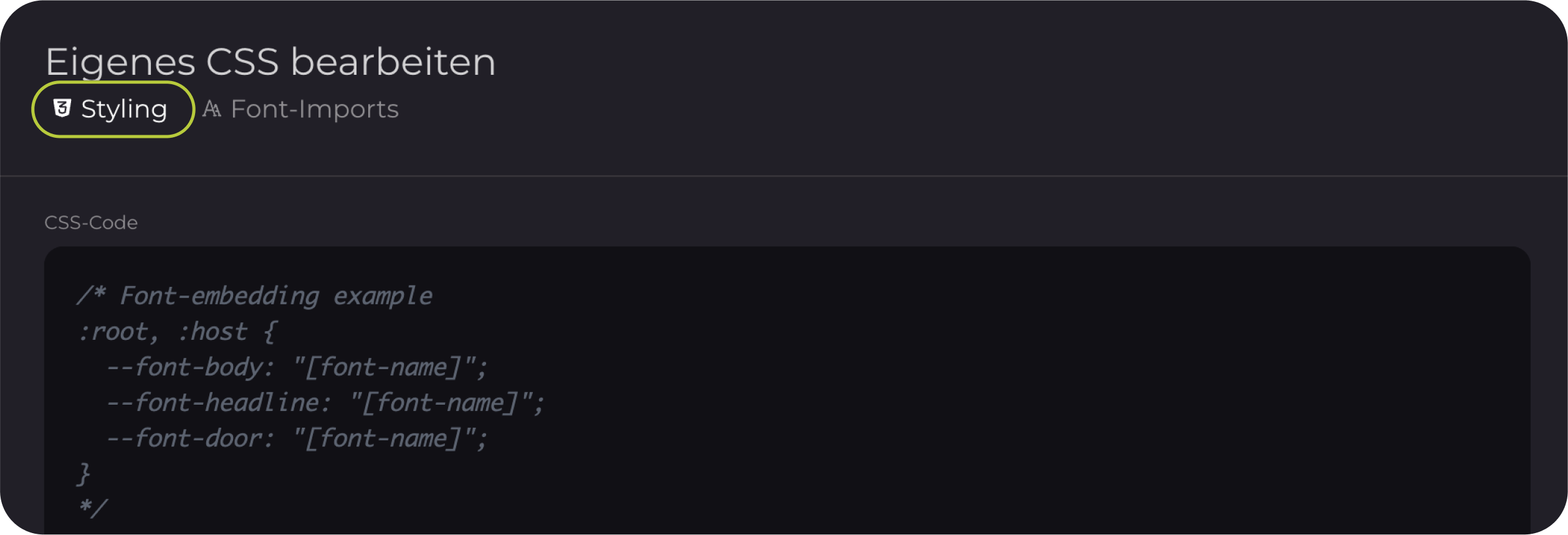
- Remove comment lines: Again, remove the comment lines /* […] */.
- Enter font names: Enter the font name you assigned in Step 2. The font should now be displayed throughout the calendar.
Note: This will overwrite the three fonts adjustable in the standard design. Bold will be used as the default style for headlines.

:root, :host {
  --font-body: "CorporateFont";
  --font-headline: "CorporateFont";
  --font-door: "ChristmasFont";
}
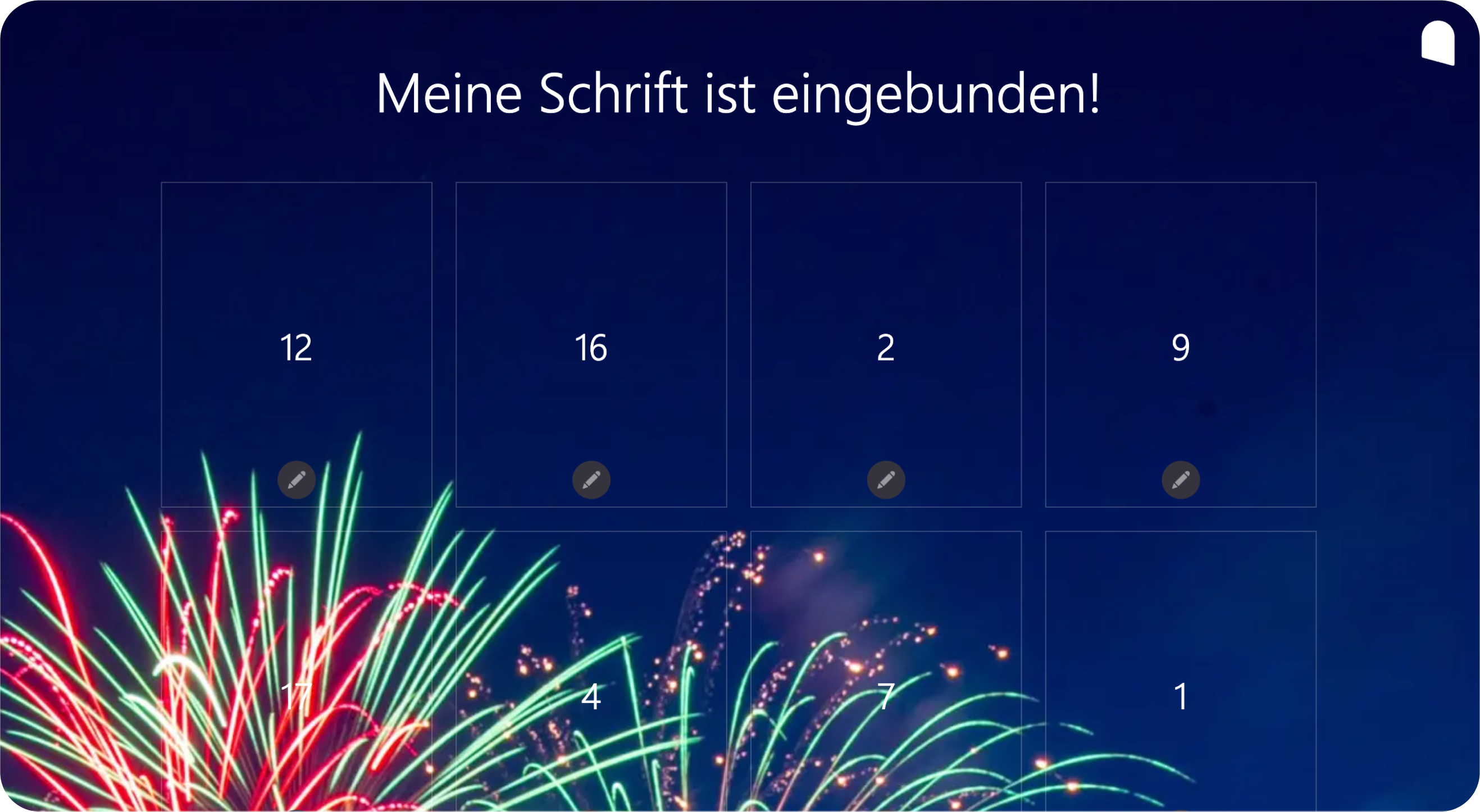
This is what it could look like:
Step 4: Fine-Tuning
For even more precise font adjustments, you can make further refinements in the same "Styling" field. For example, you can apply certain font weights or styles to specific areas.
CSS knowledge required: To make detailed adjustments, you’ll need basic CSS knowledge. Here, you can further adjust font sizes, spacing, and other visual details.
We remind you once again that you are only allowed to use fonts in the calendar for which you have the appropriate rights.
Any Questions?
Feel free to check out our help section or watch our YouTube channel for a detailed explanation of Türchen.